From Setup to Migration: Azure Event Hubs in Data Manager
This article is divided into two main sections. First, we go through the process of setting up new Event Hub input in Data Manager and migration steps from Microsoft technical add-on to Data Manager. Then, we examine key features of the connector, including automated partition detection.
New Azure Event Hubs Data Source
I’m excited to introduce you to something that’s going to improve how you onboard data: our new Azure Event Hubs connector for Splunk Data Manager.
Why Choose Azure Event Hubs?
Azure Event Hubs is fantastic for handling large-scale data streams, as it processes millions of events per second. By integrating it with Splunk Data Manager, you can effortlessly capture continuous data flows, like logs or sensor information, and leverage Splunk’s powerful analytic capabilities.
How to Set Up the Azure Event Hubs Data Input in Data Manager
I know your time is valuable, so we've made the setup process quick and straightforward:
-

-
Choose your data source: select Microsoft Azure, then Azure Event Hub.

-
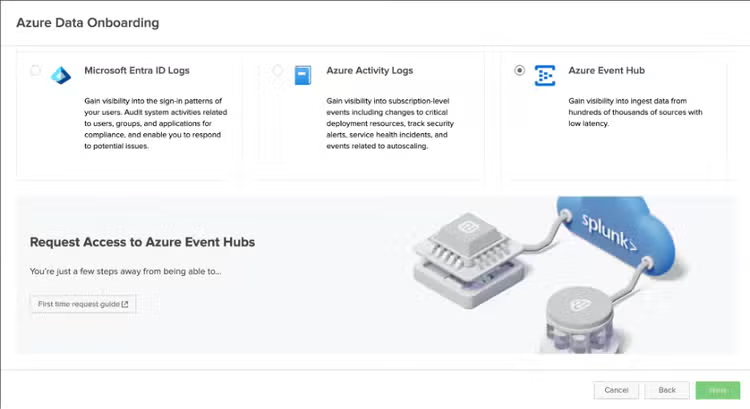
For stacks (only using Splunk Cloud Platform with no Event Hub enabled yet you need to click on the banner:
-
And request Event Hub provision by providing your stack name. Usually it takes 24 hours to have this enabled

-
-

-

-

-

How to Migrate from Splunk Add-on for Microsoft Cloud Services to Data Manager
Prerequisites:
-
Ensure you use at least version 5.4 of the Splunk Add-on for Microsoft Cloud Services.
-
Migration functionality is only supported on Splunk Cloud Platform instances.
-
You can find all prerequisites in Data Manager (New Input -> Microsoft Azure-> Azure Event Hub -> Migrate from an existing TA (Migration requires MSCS add-on on version 5.4+) -> Prerequisites for Onboarding Azure Data)

Step-by-Step Migration Process:
-
Prepare for migration.
Verify the existing setup:- Confirm that your Event Hub inputs are set up and actively pulling data into Splunk via the Splunk Add-on for Microsoft Cloud Services.
- Check that all inputs connected to the same Event Hub reside on the same Splunk instance.
-
Check input health:
-
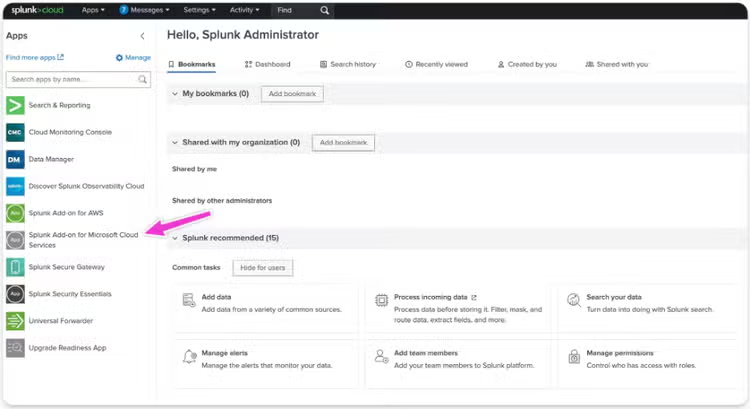
Navigate to the Splunk Add-on for Microsoft Cloud Services.
-
-

-
Export configuration snapshot.
-
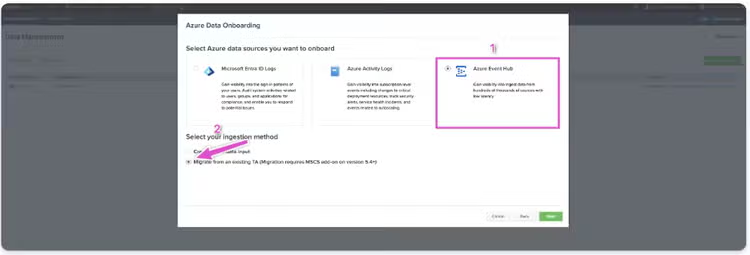
Make sure (1) “Health Status” is “Ready”
-
Click (2) Export to generate a JSON snapshot.
-
The JSON includes:
- Server information
- Timestamp
- Modular input configurations
- Checkpoints (to prevent data duplication post-migration)

-
-

-
-
-

-
Enter the Client Secret when prompted (as it isn’t included in the JSON for security reasons).
- Review the list of Event Hubs and associated inputs.
- Deselect any inputs you do not wish to migrate.
- Complete the migration process.
Data Manager will automatically create connectors and data inputs for each partition.
-

\
\
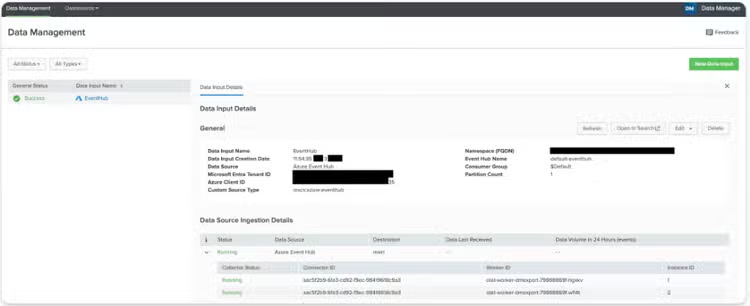
Perform post-migration verification.
Verify that data is ingested correctly in Splunk.
Confirm that the checkpoints were maintained to prevent duplicate data.
-
Cleanup.
If you are satisfied with the migration:- Best practice - wait 24 hours to make sure all inputs are good.
- Delete the Modular inputs inputs from the Microsoft Cloud Services.
Troubleshooting Tips:
- Desynchronization issues:
- Ensure all modular inputs for the same Event Hub are on a single Splunk instance.
- Long processing times:
- Large Splunk instances with numerous modular inputs may experience delays during export/import.
- Error messages:
- Errors related to index configurations or source types will be flagged during the migration process.
You can also do it one by one on the Inputs page.

Key Features of the Data Manager Azure Event Hubs Connector
A great upgrade with the new Data Manager Azure Event Hubs connector is that it now automatically detects partitions and sets up corresponding data collection processes for you. This means you don't have to handle this manually anymore. Each collector at creation of input is matched with a partition, ensuring that everything runs efficiently. This automatic setup not only saves you time but also makes sure your data collection is as effective as possible.
- Partition load balancing: The connector uses Azure Event Hubs Go SDK to automatically balance the load across partitions. Partition Load Balancing is about evenly distributing data partitions among different collectors. This strategy is crucial for system resiliency. If one collector fails, others automatically take over the partitions it was handling. This ensures our system remains stable and data continues to flow smoothly, even if a component goes down.
- Checkpointing: This feature tracks the position of each consumer in a partition, ensuring data continuity and the ability to resume from the last checkpoint in case of disconnections.
- Authentication: The connector supports a secure authentication method, improving security and simplifying credential rotation.
- Event building and e rror handling: The connector directly maps event attributes like body and properties to log records for compatibility and correct formatting.
- Exporter: It uses the Splunk HEC OTELexporter with a /raw endpoint to ensure proper formatting and ingestion of complex event data into Splunk.
Try It Out Now
Ready to see the difference? Log into your Splunk Cloud Platform instance, select Create Event Hub Input, and start ingesting your data today! Experience firsthand how easy and efficient your data management can be with our new Data Manager Azure Event Hubs connector.
Related Articles
Cyclical Statistical Forecasts and Anomalies - Part 3

IDC Report: A Best Practice Blueprint from Customers on Successful Cloud Migration
